# AWS Provider
provider "aws" {
  region = "us-west-2"
}
# VPC Resource
resource "aws_vpc" "main" {
  cidr_block           = "10.0.0.0/16"
  enable_dns_support   = true
  enable_dns_hostnames = true

  tags = {
    Name = "devops-project-5"
  }
}
# Public and Private Subnets
resource "aws_subnet" "public" {
  vpc_id                  = aws_vpc.main.id
  cidr_block              = "10.0.1.0/24"
  map_public_ip_on_launch = true
  availability_zone       = "us-west-2a"

  tags = {
    Name = "devops-project-5-public-subnet"
  }
}

resource "aws_subnet" "private" {
  vpc_id            = aws_vpc.main.id
  cidr_block        = "10.0.2.0/24"
  availability_zone = "us-west-2a"

  tags = {
    Name = "devops-project-5-private-subnet"
  }
}
# Internet Gateway
resource "aws_internet_gateway" "igw" {
  vpc_id = aws_vpc.main.id

  tags = {
    Name = "devops-project-5-igw"
  }
}
# NAT Gateway & Elastic IP
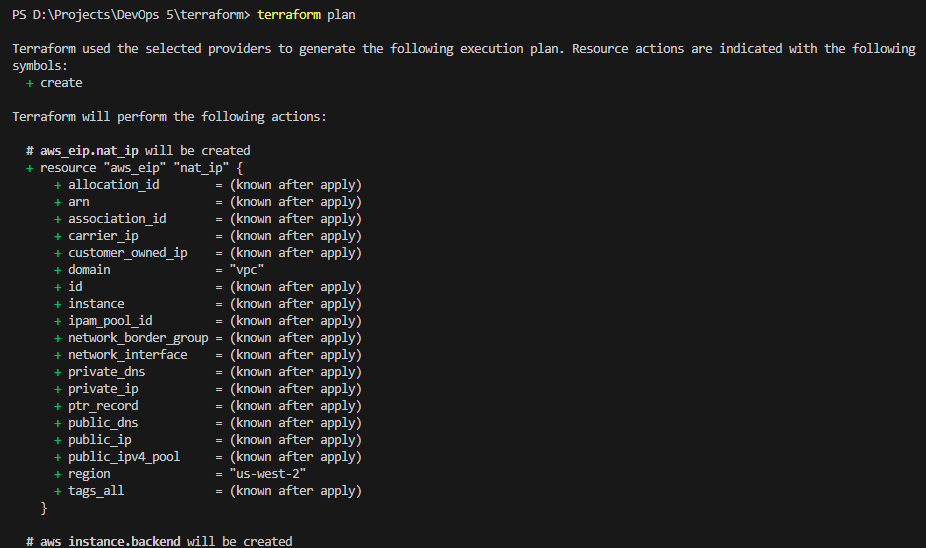
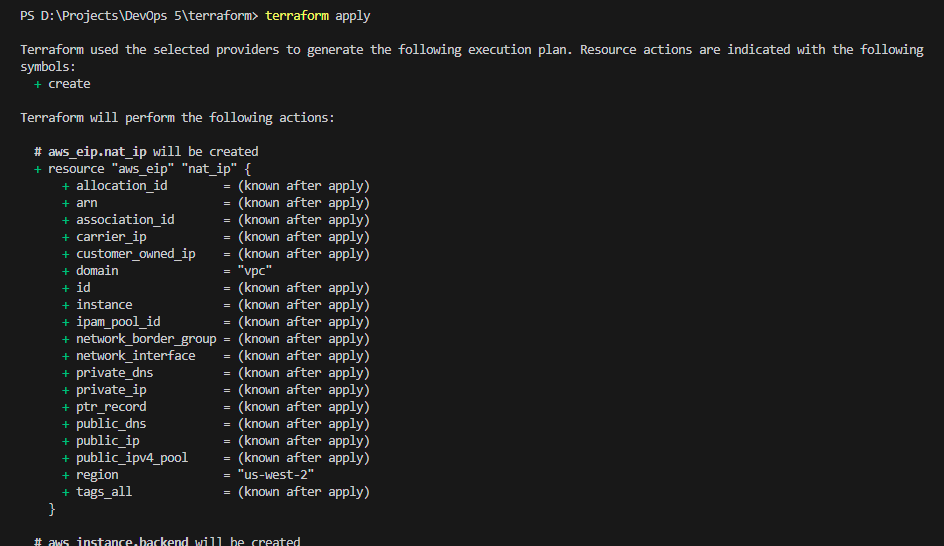
resource "aws_eip" "nat_ip" {
  domain = "vpc"
}

resource "aws_nat_gateway" "nat" {
  allocation_id = aws_eip.nat_ip.id
  subnet_id     = aws_subnet.public.id

  tags = {
    Name = "devops-project-5-nat"
  }
}
# Route Tables
resource "aws_route_table" "public" {
  vpc_id = aws_vpc.main.id

  route {
    cidr_block = "0.0.0.0/0"
    gateway_id = aws_internet_gateway.igw.id
  }

  tags = {
    Name = "devops-project-5-public-rt"
  }
}

resource "aws_route_table" "private" {
  vpc_id = aws_vpc.main.id

  route {
    cidr_block     = "0.0.0.0/0"
    nat_gateway_id = aws_nat_gateway.nat.id
  }

  tags = {
    Name = "devops-project-5-private-rt"
  }
}
# Route Table Associations
resource "aws_route_table_association" "public_assoc" {
  subnet_id      = aws_subnet.public.id
  route_table_id = aws_route_table.public.id
}

resource "aws_route_table_association" "private_assoc" {
  subnet_id      = aws_subnet.private.id
  route_table_id = aws_route_table.private.id
}
# Frontend Security Group
resource "aws_security_group" "frontend_sg" {
  name   = "frontend-sg"
  vpc_id = aws_vpc.main.id

  ingress {
    description = "Allow HTTP"
    from_port   = 80
    to_port     = 80
    protocol    = "tcp"
    cidr_blocks = ["0.0.0.0/0"]
  }

  ingress {
    description = "Allow HTTPS"
    from_port   = 443
    to_port     = 443
    protocol    = "tcp"
    cidr_blocks = ["0.0.0.0/0"]
  }

  ingress {
    description = "Allow Next.js"
    from_port   = 3000
    to_port     = 3000
    protocol    = "tcp"
    cidr_blocks = ["0.0.0.0/0"]
  }

  ingress {
    description = "Allow SSH"
    from_port   = 22
    to_port     = 22
    protocol    = "tcp"
    cidr_blocks = ["0.0.0.0/0"]
  }

  egress {
    from_port   = 0
    to_port     = 0
    protocol    = "-1"
    cidr_blocks = ["0.0.0.0/0"]
  }

  tags = {
    Name = "frontend-sg"
  }
}
# Backend Security Group
resource "aws_security_group" "backend_sg" {
  name   = "backend-sg"
  vpc_id = aws_vpc.main.id

  ingress {
    description     = "Allow backend requests from frontend SG"
    from_port       = 8000
    to_port         = 8000
    protocol        = "tcp"
    security_groups = [aws_security_group.frontend_sg.id]
  }

  egress {
    from_port   = 0
    to_port     = 0
    protocol    = "-1"
    cidr_blocks = ["0.0.0.0/0"]
  }

  tags = {
    Name = "backend-sg"
  }
}
# Backend EC2 Instance
resource "aws_instance" "backend" {
  ami                    = "ami-0892d3c7ee96c0bf7"
  instance_type          = "t2.micro"
  subnet_id              = aws_subnet.private.id
  private_ip             = "10.0.2.20"
  vpc_security_group_ids = [aws_security_group.backend_sg.id]

  user_data = file("user_data_backend.sh")

  tags = {
    Name = "backend-server"
  }
}
# Frontend EC2 Instance
resource "aws_instance" "frontend" {
  depends_on = [
    aws_instance.backend
  ]

  ami                    = "ami-0892d3c7ee96c0bf7"
  instance_type          = "t2.small"
  subnet_id              = aws_subnet.public.id
  vpc_security_group_ids = [aws_security_group.frontend_sg.id]

  user_data = file("user_data_frontend.sh")

  tags = {
    Name = "frontend-server"
  }
}